
 Kotelys
What's new
Kotelys changes often, based on feedback from the people who use it on their projects. Here is every version and what it brings.
-
Version 0.10.24
A smoother first few minutes.
From black and white back to colour, without a hitch
On some PDF drawings, going back to a colour background stopped Kotelys dead. That is fixed. And the Background button entry now says what it will do: “Colour background” or “Black and white background”.
The scale, right from the import
A drawing you have just imported shows a banner at the top: the scale read on the drawing, or a reminder when there is none, with the “Set the scale” button. Kotelys never applies a scale for you.
The export button always at hand
In the Reports tab, the export button stays visible at the bottom of the column, even on a small screen. When it is greyed out, it says why.
The right gestures, recalled at the bottom
The bottom bar gives the gestures of the current tool, the most useful first: the click-and-drag rectangle is announced at last. When they do not all fit, a “…” shows them.
Shift+G and the “Recent” list
The Shift+G window opens without a red sentence. And a project saved under a new name opens properly from the “Recent” list of the Windows taskbar.
-
Version 0.10.23
A finishing pass, window by window.
Windows that show everything
Every Kotelys window was reviewed in the real software: Gate, Scale, Export, Copy to another plan, creating a length or an area… No more clipped text or cramped buttons.
The right name, right away
When you place one machine after another, the window offers the name of the model you pick, not the previous one. And the name follows when you change model.
A tidy plan gallery
In the Plans tab, the thumbnails of a row are aligned, even when a plan name runs over two lines. Away from a plan, the bottom bar steps aside.
A sturdier title block
An endless word in a cell no longer freezes the Title block window, and dragging a title block while the project closes no longer raises an error.
-
Version 0.10.22
Finishing touches everywhere, and better Spanish.
One way to rotate
Placing an oriented object, an installation template, the ↻ handle or a selection: everything turns degree by degree, and Shift gives 15° steps. In the status bar, Esc reminds you that it removes the last point placed.
Clearer messages
When a licence activation fails, Kotelys tells you why, in one plain sentence. Tool tips follow your shortcuts as soon as you change them, and the help covers the latest gestures: Ctrl+F, Ctrl + drag, pasting an image.
Imperial units, type by type
In imperial, each type picks its unit: LF or LY for a length, SF, SY or SQ for an area, CY or CF for a volume. The calculation is written out in the takeoff sheet. In metric, nothing changes.
Spanish reviewed by construction people
A Spanish construction professional and an architect reviewed Kotelys. The software, the help and the website now use the real vocabulary of Spanish building sites.
-
Version 0.10.21
Room to breathe in Properties, a professional title block.
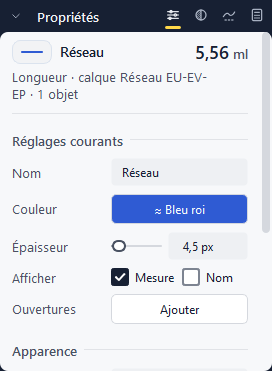
The Properties panel breathes
The section icons have moved up into the title bar: the fields get the full width back. The header fits on one line, name on the left and quantity on the right. Fields stay quiet until you hover them, section titles are lighter, and a folded section tells you how many settings it holds.
A professional title block
Your company and logo on the left, the document on the right, drawn as cleanly as on an architect's plan. The large box carries the reference name. Right-click a box in the Title block window to enlarge its text or its caption. Save your title block as a template and find it in all your projects.
Paste where you are
Ctrl+V now pastes objects into the selected layer, on this plan or another. Notes, texts and images are no longer tied to the layer of their kind.
-
Version 0.10.20
Reports you can read at a glance.
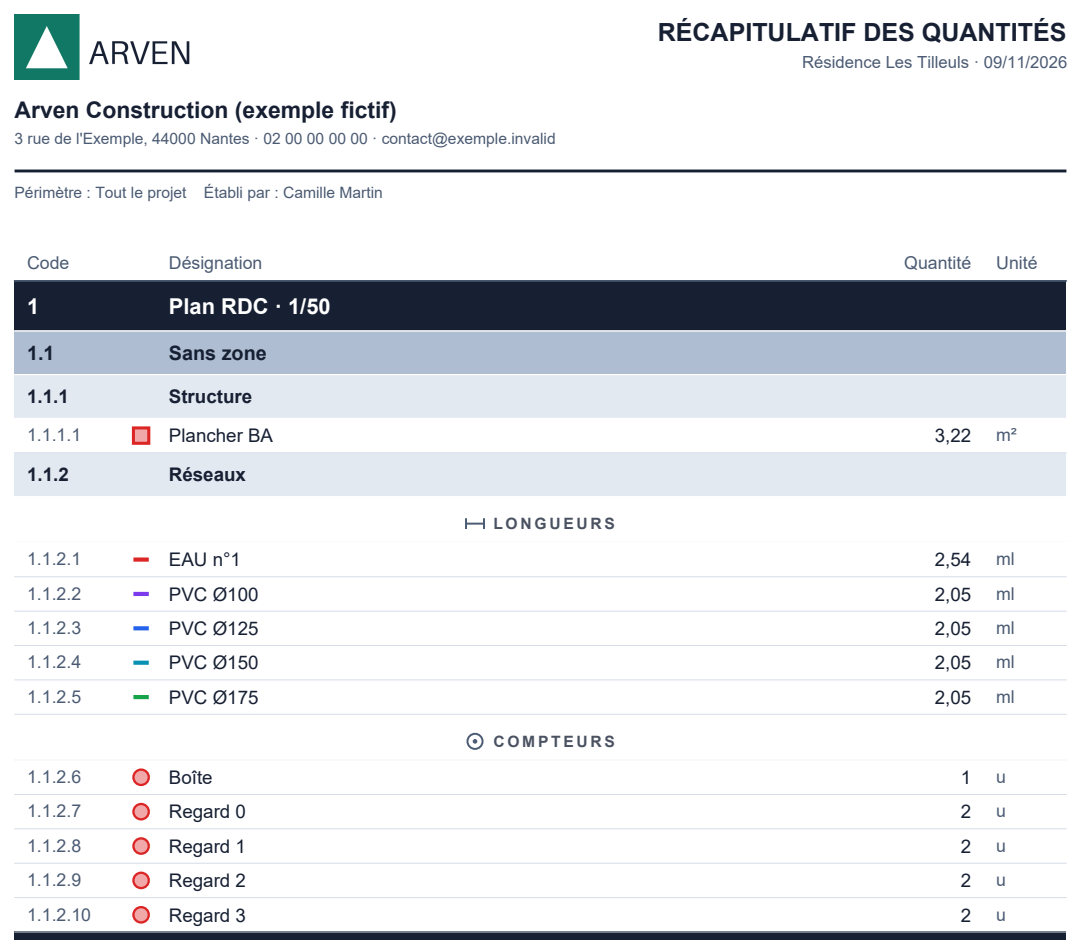
Headings that stand out
In PDF reports, each heading level has its own band: night blue for the plan, lighter for the zone, pale for the layer. “Lengths”, “Areas” and “Counts” are centred, and a heading is never left alone at the bottom of a page. Your logo is larger and lined up with your company name. It even reads well printed in black and white.
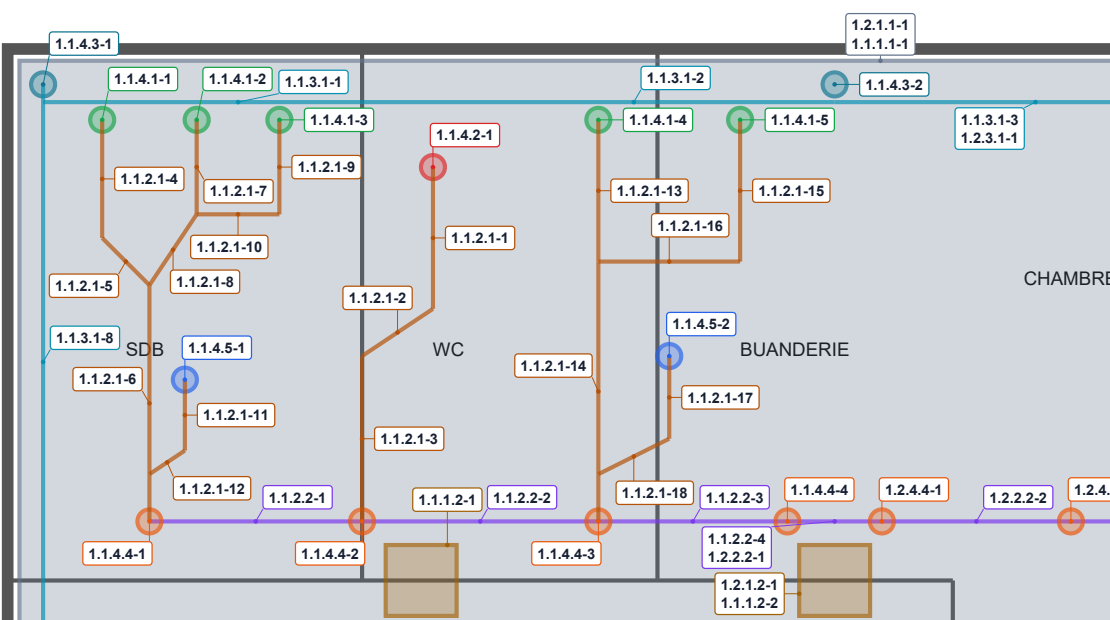
Codes no longer hide your objects
In the annotated plan set, each code sits next to its object, linked by a thin line, without covering a line, a symbol or another code. Nearby counts of the same type share a single label.
A vertical title block
Title block window, “Direction” line: turn the title block into a column, plan by plan or for the whole project. The text stays horizontal, and going back to horizontal restores your previous layout. The window now fits in full, without scrolling, even on a small screen.
-
Version 0.10.19
One note, several places on the plan.
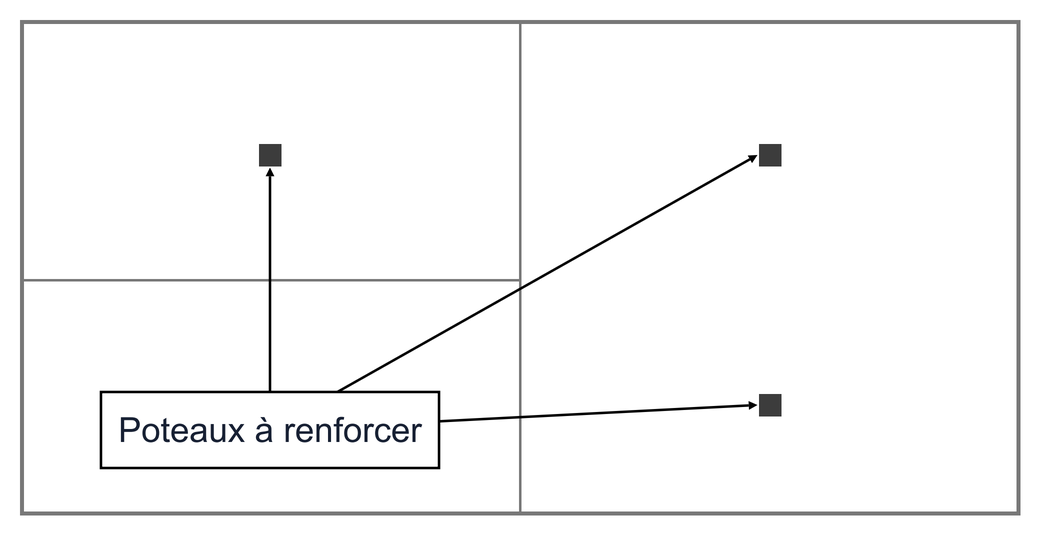
Several arrows for the same note
Three columns to strengthen? No need for three notes any more: a single note can now point to several places. Add an arrow with a right-click (“Add an arrow”), with the “+ Arrow” button in Properties, or by dragging from the note with Ctrl held down. Each tip moves on its own; a right-click on an arrow removes it. It also works for images placed on the plan.
-
Version 0.10.18
Your reports, sorted and readable at a glance.
Items in alphabetical order
In PDF and Excel reports, items came out in the order you had placed the objects, and the “Total per type” mixed counts, lengths and areas. Everywhere, they are now listed by kind (lengths, then areas, then counts…) and, within each kind, in alphabetical order, exactly as in the Objects panel: “Column 2” before “Column 10”, capitals and accents do not change the order. Thanks to the beta tester who reported it!
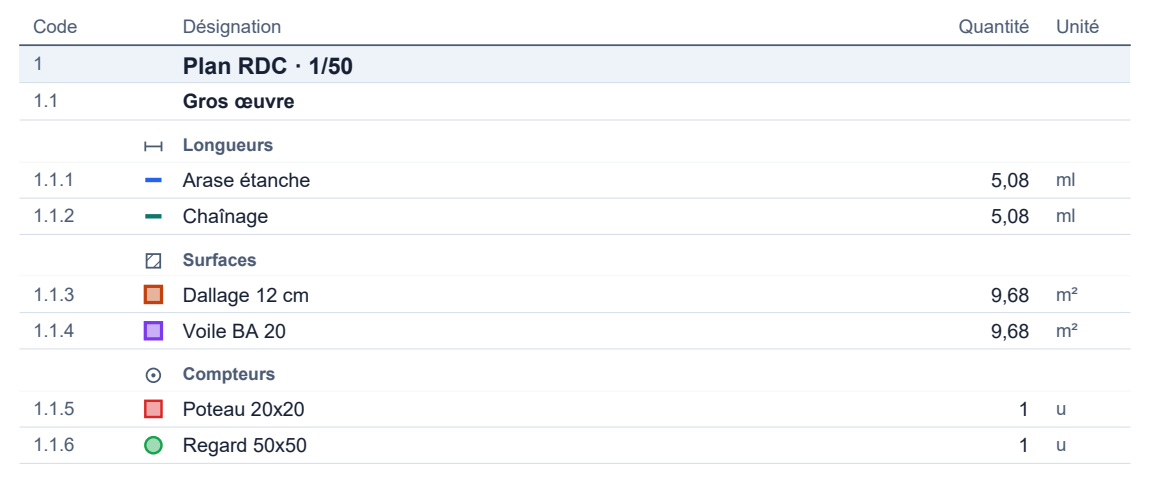
Length, area or count? You can see it
In each group of a report that mixes several kinds, a subheading announces “Lengths”, “Areas” then “Counts”, with its pictogram. A column counted with a square is no longer mistaken for an area. In the Excel file, the “Kind” column spells it out, handy for filtering.
-
Version 0.10.17
Zoom without worry, find your panels again.
Full zoom, no hiccups
At maximum zoom, Kotelys could suddenly close on some drawings: that is fixed. And the large grey patches that sometimes covered the beams of a structural drawing are gone. On first display, Kotelys redraws the drawings once: allow a few seconds.
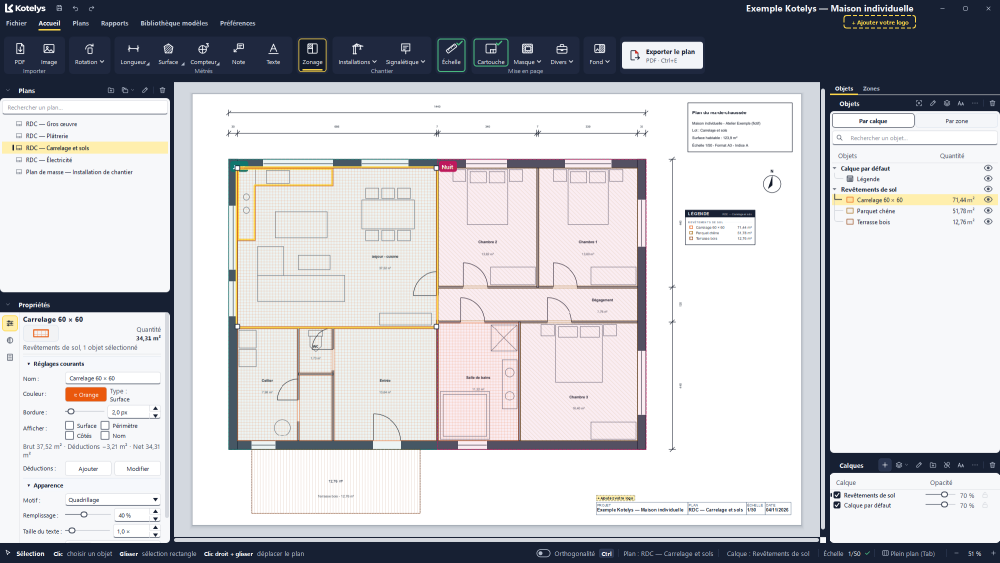
Your panels stay where you put them
Column widths, height of Drawings, Properties, Objects and Layers: Kotelys finds your layout again at every start, even maximised. And the starting layout gives more room to the drawing and to the objects list. Preferences, “Put them back”: it comes back in one click.
-
Version 0.10.16
Menus that speak, a tidier ribbon.
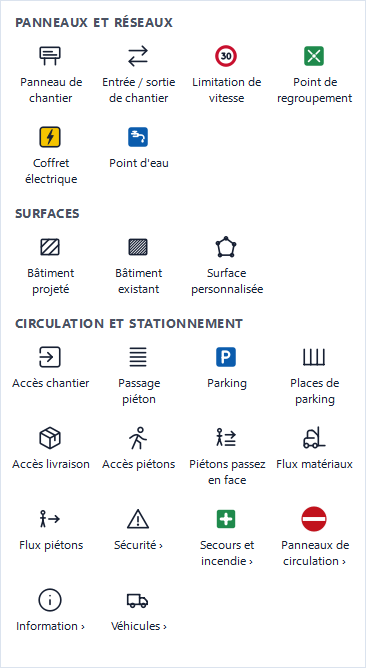
Installations and Signage, in pictures
The menus have new, sharper pictograms, and real site signs in colour: stop, no entry, first aid, no smoking… You find what you need at a glance. And Vehicles are also in the Installations menu.
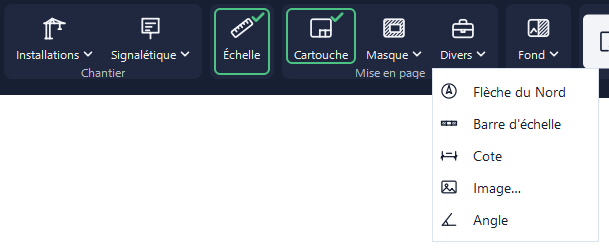
A tidier ribbon
Other has its toolbox, and the Angle tool has joined it, at the end of the menu. The “Opacity” button becomes “Background”: opacity and black and white, in the same place.
X as in “delete this point”
Object selected, mouse over one of its points: press X and the point is gone. No click, no menu, and Ctrl+Z brings it back. Works on deductions too.
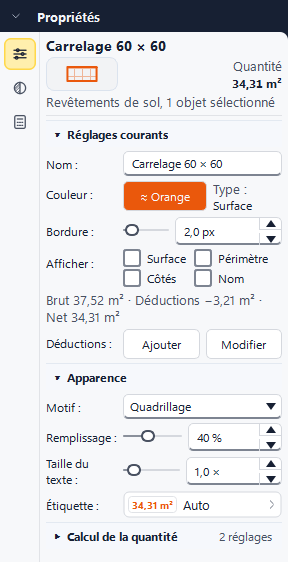
Shorter Properties
On an area or a length, “Quantity calculation” stays folded until you open it (and so does “Text along the length”). Open it once and it stays open until you close Kotelys. A zero slope is simply written “0”.
-
Version 0.10.15
Sturdier, clearer, and in feet if you like.
Server away? Your work is safe
If the company server stops answering, Kotelys no longer freezes: it offers to save a copy on this PC, then puts it back as soon as the server returns.
Copy to another drawing, straight to the point
Points A and B show at every zoom. A drawing rotated by any angle is followed, and objects join the layers of the same name. A length gap no longer blocks the copy: it is simply flagged.
A black and white background
Opacity button > “Black and white background”, or right-click a drawing: the background turns grey, drawing by drawing, and the export follows.
Your own machines
Piling rig, excavator, dumper or generic machine: set its dimensions, then “Save this machine…”. It waits at the top of the list in all your projects.
Properties you can scan at a glance
A rail of icons on the left of the panel takes you straight to each section. A yellow dot flags a setting specific to this object.
Feet and inches
Preferences > Quantities > “Unit system”: dimensions in feet and inches, quantities in LF, SF and CY, US scales. Your projects stay the same.
Screen and PDF, twins
Dimensions, names, texts, hatching, legend and title block are shown at their printed size, with the same colour and transparency as in the PDF.
-
Version 0.10.14
What you see is what prints.
Notes true to the PDF
A note or a free text comes out in the PDF exactly as on screen: same box size, same line breaks, same alignment, same layer transparency.
Site signs
Signs now use site colours, with rounded corners. Eleven new signs arrive, sorted into three new submenus: First aid and fire, Traffic signs, Information. “No smoking” joins Safety.
Smooth updates
Restarting Kotelys during an update can no longer damage it. If an installation is ever incomplete, Kotelys says so clearly and tells you what to do.
-
Version 0.10.13
Your thumbnails, in your order.
Drag the thumbnails
In the Drawings tab, drag a thumbnail to the left or right of another to place it before or after it. A line shows where it will go, and Ctrl+Z undoes it.
Updates you can see
From the next update, a window shows the installation in progress between Kotelys closing and reopening.
-
Version 0.10.12
The PDF, just like the screen.
Drawing opacity in the PDF
A drawing faded with the Opacity button now comes out faded the same way in the exported PDF, under your masks and measurements.
Your drawings, in your order
In the Drawings panel, drag a drawing between two others to place it wherever you like. The order is saved with the project.
Faster on a server
Switching from one drawing to another is almost instant, even when the project is stored on the company server.
Fences and signs
Set the spacing and size of fence posts. The text on sign plates always reads the right way up.
Steadier panels
Properties and Layers always keep a readable height, even on a laptop screen.
-
Version 0.10.11
Place it where you let go.
Place on release
Hold the left button while placing a count or an installation: the object follows the mouse and is only placed when you let go. A simple click places it as before, and Esc, with the button held, places nothing.
-
Version 0.10.10
More precise, smoother, better proportioned.
Rotation to the nearest degree
Selected objects now turn to the nearest degree, like with the ↻ handle of skips and cranes. Hold Shift to turn in 15° steps.
An image that glides
On a project stored on the server, an image placed on the plan now moves without stuttering.
A “Recent” list that responds
Right-click the Kotelys icon in the taskbar: recent projects open again, even after the old installation.
A legend sized to the sheet
The legend of a new plan is proportioned to its sheet: no more oversized legend on a small format.
-
Version 0.10.9
Turn your objects, paste your images.
Objects turn with the mouse
The Rotation button has two sections: the plan, and the selected objects. Select objects, then “Turn with the mouse”: they turn together around their centre, in 15° steps (Ctrl for a free angle). A click confirms, Esc cancels.
An image pasted in one move
A screenshot or an image copied elsewhere can be pasted onto the plan with Ctrl+V, then placed with a click.
Tidy layers
The layers of a group are indented and linked to their group by a line. A layer no longer drops into another by accident: you have to release it in the middle of the row.
A few extra moves
Double-click the wheel: the whole plan on screen. A PDF dragged onto a brand-new project is imported. And on a crane, the circles every 5 m can be hidden.
-
Version 0.10.8
Smoother on a server, and the length of every side.
Smooth, even on the server
Is your project stored on your company's server? The backup copy is now written in the background: no more short one- or two-second freezes when clicking or changing a setting.
The length of every side
Tick “Sides” on the Show row of an area: each side writes its length along the edge, outside, on screen and in the PDF. A side too short for its figure stays quiet.
A title that keeps up
When a setting renames the type (a crane's jib, for example), the title of the Properties panel follows at once.
-
Version 0.10.7
Drawing that follows you, Properties with room to breathe.
The plan follows you to the edge
Drag a handle, move an object or draw a length up to the edge of the view: the plan scrolls by itself. While drawing, a dimension shows its figure from the first click, and an area always shows the length of the current segment.
More room for Properties
On a laptop, the Drawings panel folds into one line as soon as an object is selected: Properties take the whole height, with all their sections open. It comes back when nothing is selected any more.
Cranes and fences placed better
A crane's base turns with its own handle, without moving the jib. The posts of a slanted fence follow its direction, on screen and in the PDF.
Easier to read
Grey text is darker everywhere, and the Objects panel links each object to its layer with a fine line. No more red “!” in the list; a drawing dragged into its folder no longer vanishes.
-
Version 0.10.6
Sloping roofs, images, and zoning that guides you.
Slopes, counted at last
A roof pitch, a rafter, a sloping pipe run: give the type its slope (in % or degrees) under “Quantity calculation”. The quantity becomes the true area or length, and the take-off note writes the calculation out: 42.10 m² × 1.118 (50 % slope).
An image on the plan
A site photo, the client's logo, a diagram: Other ▸ Image…, one click to place it. Drag a corner to size it without distorting it; set its transparency, add a frame. It prints with the plan and counts in no take-off.
Zoning that guides you
The Zoning button stays clearly pressed while it is on, and the Zones panel explains in three steps how to draw and name your zones, then find them in the reports.
-
Version 0.10.5
Small tweaks, big comfort.
Panels that stay put
Tab hides and reopens the panels as often as you like: Layers no longer eats into the Objects panel, and each one gets its exact size back.
Switching drawings, without a stray legend
While the new drawing loads, nothing of it is drawn over the old one any more: its legend, take-offs and site installations appear all at once, with it.
Messages always in plain words
Even when a file's folder name contains an accent, or while calibrating the scale and previewing reports, a problem is explained in plain words, with what to do.
-
Version 0.10.4
Kotelys shifts up a gear.
Architects' drawings, even very heavy ones
An A0 drawing with 300,000 lines appears in 2 seconds instead of more than 30, reopens at once, and zooming never freezes Kotelys again: the drawing is rendered in pieces, on every core of your PC, and kept in the project folder.
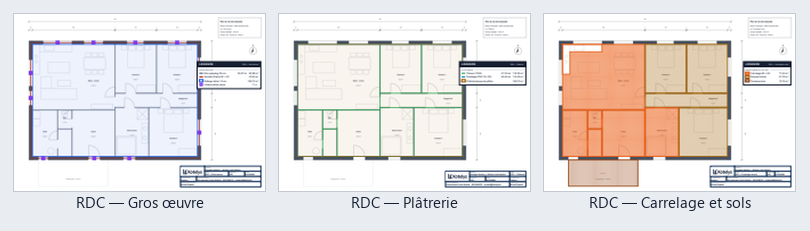
Your annotated drawings at a glance
The Drawings tab shows each drawing with its take-offs, site installations, legend and title block, kept up to date with every change.
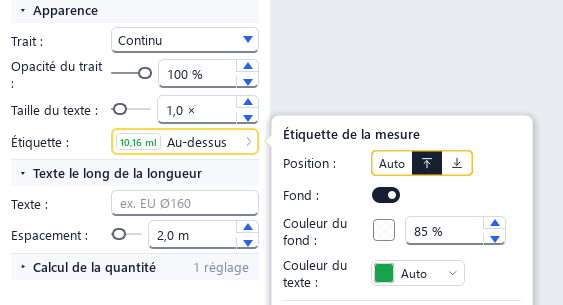
Measurements you can read
In Appearance, the “Label” row puts the measurement above, below or in the centre, adds a background and picks the text colour. For the whole type, on screen and in the PDF.

Export, in plain sight
The “Export drawing” button no longer hides at the end of the ribbon. And Ctrl+E exports the drawing on screen, even faster.
Your usual layers
Save a drawing's layers as a list, then recreate them in one click on any drawing, in any project: button of the Layers panel, right after “+”. Phasing is gone.
And also
A snappier start, faster Ctrl+S and Ctrl+Z, a Reports tab that pauses as soon as you leave it, and no more stray little squares over exported AutoCAD drawings.
-
Version 0.10.3
Kotelys installs for good.
For every user of the PC
Kotelys now installs in Program Files, like the other software of your design office. Windows asks for an administrator's approval when installing and at each update. Your settings and projects stay where they are.
Your projects found again
A project saved in the old program folder? It has been moved, untouched, to Documents\Kotelys\Projets\Récupérés de l'ancienne installation, and your recent projects find it on their own.
A recognised publisher
Kotelys and its installer are digitally signed: Windows shows the publisher's name instead of “Unknown publisher”.
And also
Two clicks in the same place no longer create an empty opening in a wall; the legend can also be placed on a very small drawing; stronger protection of the software.
-
Version 0.10.2
Kotelys gets a new look.
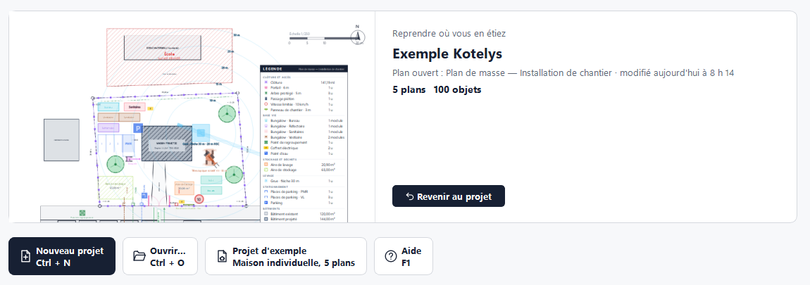
Pick up where you left off
Kotelys opens on a home page: your last project in large, with its last drawing and its figures. One click and you are in. Your other projects follow as thumbnails.
Tidy Preferences
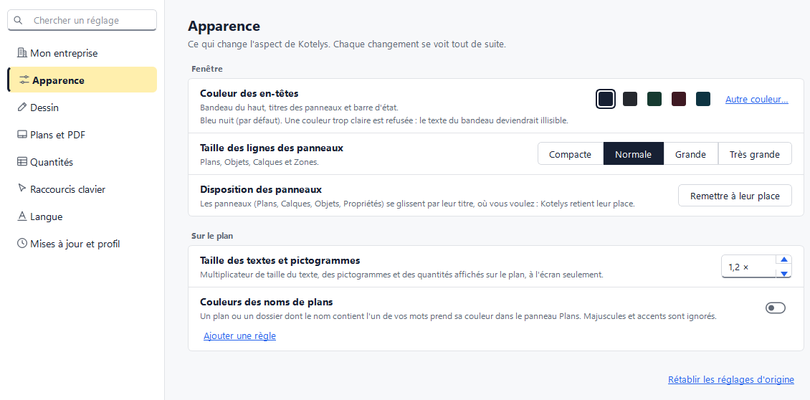
Eight sections and a search: type “zoning” or “crane” and the right setting appears. Each setting says what it changes, and what you have changed is marked.
Quantities in line
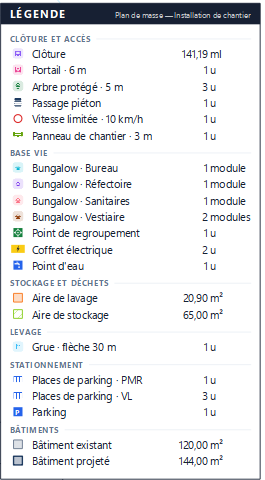
In the Objects panel, the legend and the PDF, numbers line up one under the other, the unit in its own column: just like in your spreadsheet.

The revision in the title block
Title block window, “On this drawing”: type the revision and its date, they are written in the Revision box of the title block, live on the drawing.
And also
Kotelys in Spanish (Preferences, Language), report export with Ctrl+E, a sheet resting on its table, a clearer status bar, and the new version announced at startup.
-
Version 0.10.1
An update that no longer gets stuck.
No more frozen installation
If Kotelys is still open when you run the installer, it tells you and waits until you close it, instead of staying stuck at 0%.
The update downloads inside Kotelys
Clicking “new version” during the download no longer sends you to the browser: Kotelys tells you it is downloading, then offers to install it.
Quantities that stay right
Right-clicking an installation (access, fence, mask…), “Move to this type” no longer offers take-off types: an installation can no longer slip into a length or an area.
-
Version 0.10.0
More room, less waiting.
Wider placing windows
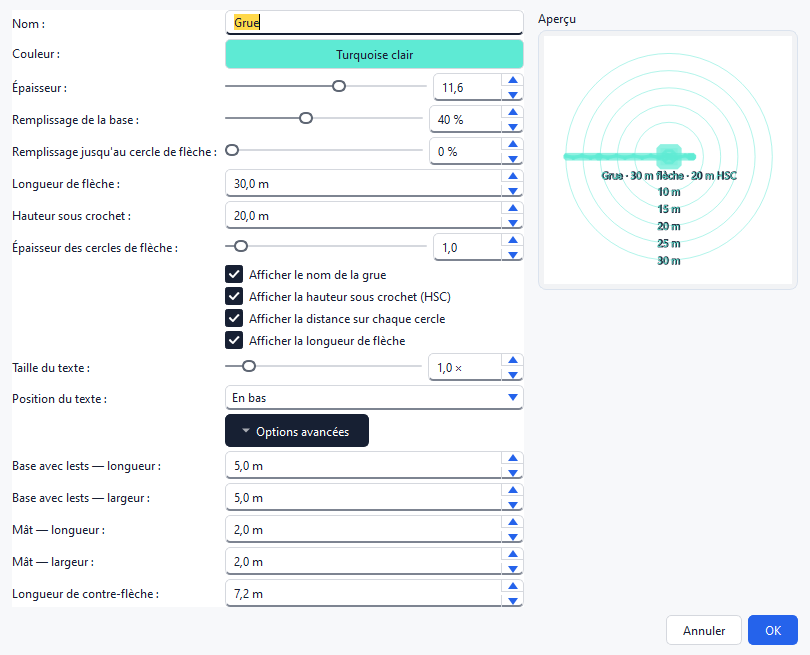
Settings get more room when you place a crane, a site cabin or a sign. And when you open “Advanced options”, the window grows instead of cutting the boxes.
An installer that responds at once
One click on INSTALL and installation starts right away, with no frozen moment. The installer also speaks the language of your Windows.
The example project, fully translated
Using Kotelys in English? The example project follows, down to the room names and the title block drawn on the plan.
-
Version 0.9.9
Your company, a brand-new help.
“My company” within easy reach
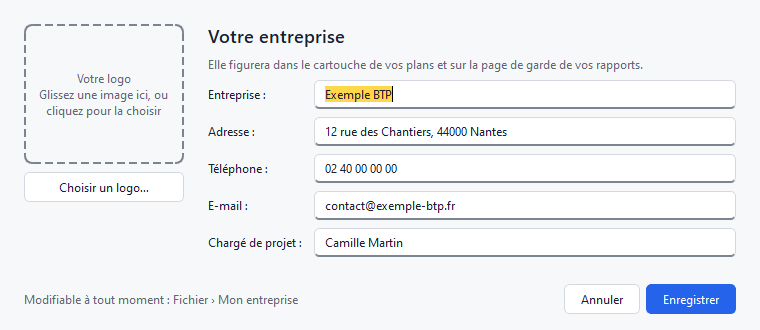
Logo, contact details and project manager have their own window: the “My company” button in the File tab, the first card in Preferences, or a click on the badge at the top right. While the logo is missing, the title block shows “+ Add your logo” on screen only: one click and it's done.
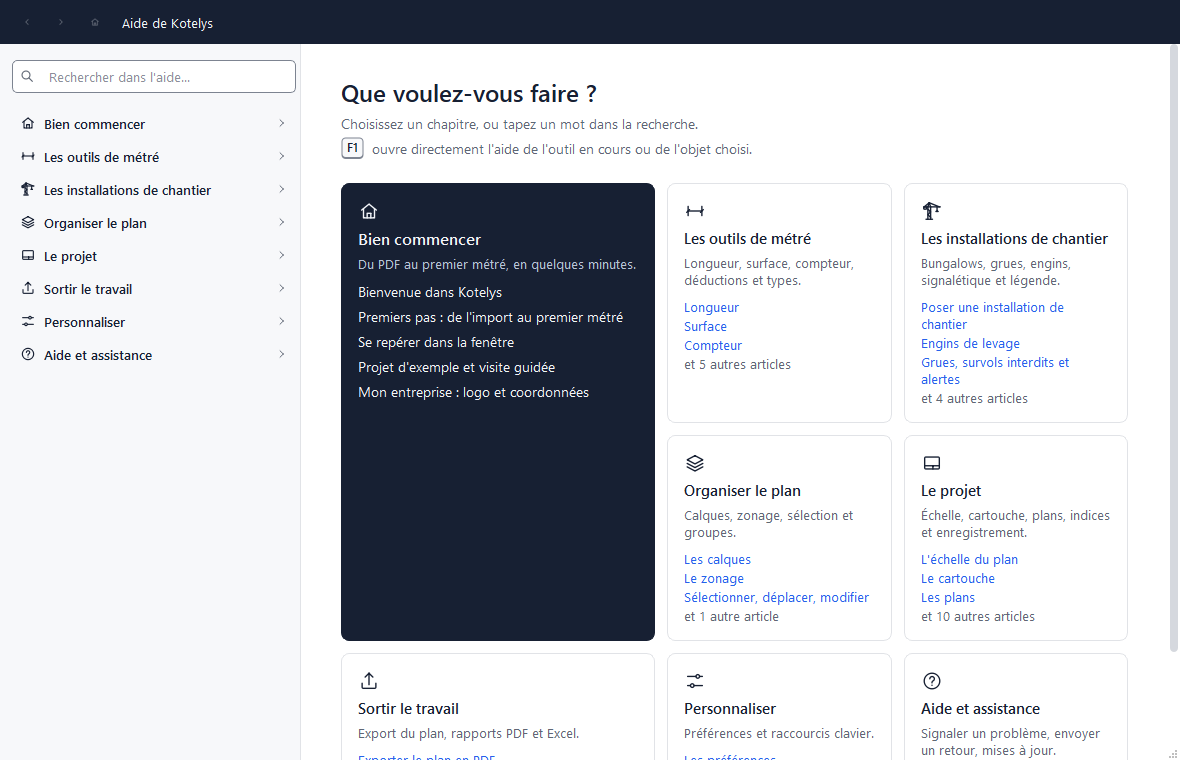
A bigger, clearer help
Help opens large, on a home page made of cards. More readable text, numbered steps, drawn keys, Tip and Caution boxes, Back and Next. And F1 opens the help for the current tool directly.
Lifting equipment: filled base and reach
Like the tower crane, each machine sets its own “Base fill” and “Reach fill”. The preview in the placing window now frames the machine, not the whole reach circle.
Even more compact Properties
Labels that were too long take a short form on a single line (the full text stays in the tooltip), and the “Show…” boxes go two by two.
Safer report export
A very busy cover page (very long company details) could make a report export fail. This is fixed.
-
Version 0.9.8
Dimension, organise, see it all at once.
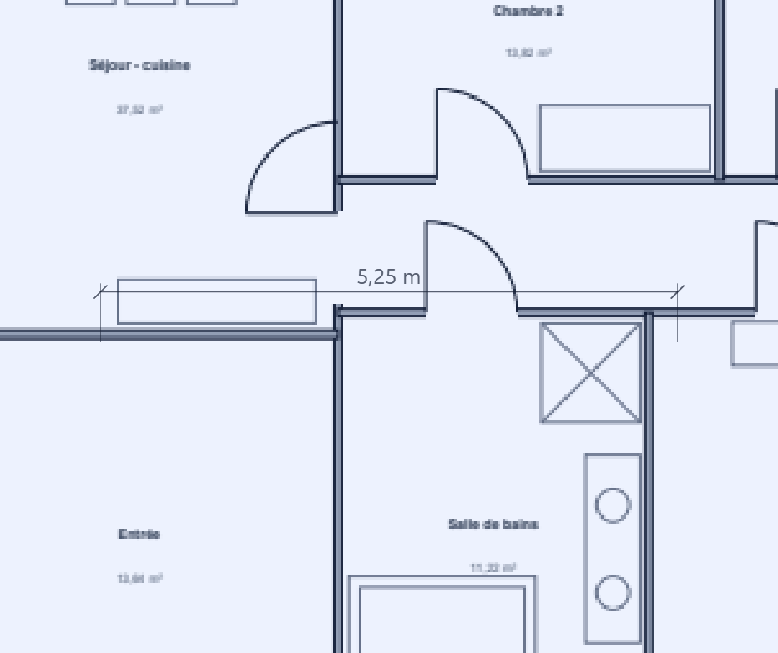
Layout dimension
In the Layout tab, next to North and the scale bar: three clicks and a dimension appears, with oblique ticks and the value above. Size, offset, unit and decimals are set in Properties. It counts in neither take-offs nor the legend.
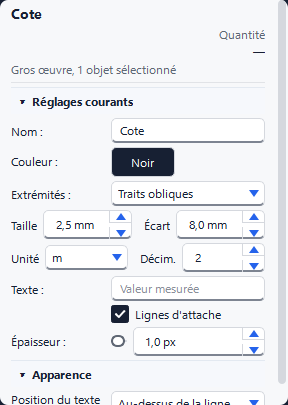
Properties that fit on screen
Short settings now go two to a row: Size and Offset, Unit and Decimals, Jib and Hook height… Less scrolling, and sliders keep all their room.
A new layer in one keystroke
“New layer” is suggested and already selected: type the real name straight away, or press Enter to confirm and carry on.
Drawings from CAD export correctly
On PDFs whose visible sheet is smaller than the page (common when output by CAD software), the export lost the take-offs. They are in place, in the drawing export as in the drawing set.
The legend follows Undo and Redo
After Ctrl+Z then Ctrl+Y, the drawing's legend could keep an old quantity. It now updates together with the Objects panel, every time.
-
Version 0.9.7
A site layout plan that says it all.
Updates install themselves
No more going through the browser: Kotelys downloads the new version in the background, checks the file, then “Install and restart” closes it, installs it and reopens it on your project. Later? It installs when you close Kotelys.
Exports match the screen, on every PDF
On some architects' drawings, the exported PDF shifted the take-offs, the legend and the mask by half a sheet. Every drawing now comes out exactly as in the Home tab. And the legend follows every copy-paste, like the Objects panel.
Safety signs
New “Safety” submenu in Signage: No parking, Roadworks ahead, Lorries exiting and Site closed to the public. They are placed like the other signs and count as 1 u in the legend.
Deliveries and pedestrians, each with its own access
Delivery access, Pedestrian access and Pedestrians use other side: plates oriented when placed, with the text you want. The plate grows with its text: it never overflows.
Flows at a glance
Material flow in orange dashes, pedestrian flow in green dots: two ready-made arrows that stay distinct even printed in black and white.
-
Version 0.9.6
Everything fits on screen, first time.
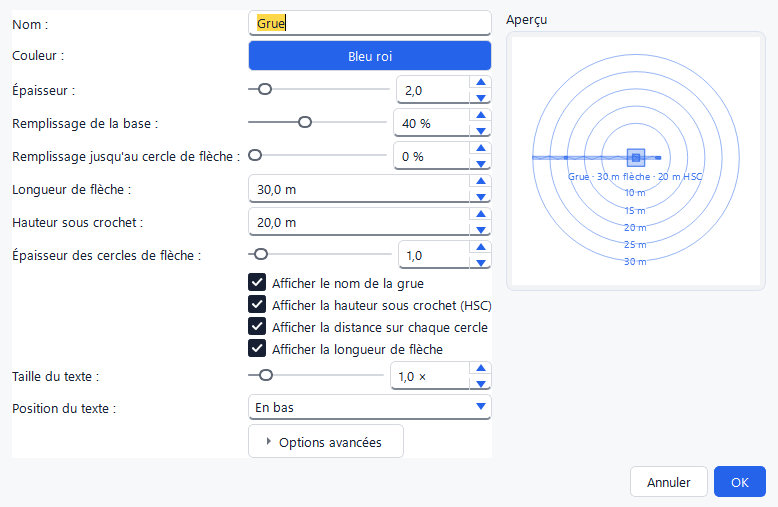
Set up a Crane without scrolling
Creation windows (crane, machines, site cabins, vehicles, signs…) show the preview to the right of the settings as soon as they open, even on a small laptop. Rarely used settings wait under “Advanced options”.
“HTA” in ochre, never in white again
Text repeated along a yellow network came out white in the PDF. It is now written in a darker shade of the line colour, readable on screen and on paper, and so is the dimension.
Tidy panels from the start
Columns sized to leave the drawing as much room as possible, Zones as a tab behind Objects, a lower ribbon on small screens: the same layout on every screen, with nothing to rearrange.
The guided tour lets you take over
On first launch, Kotelys opens maximised. During the tour, you can maximise, move or resize the window: the bubble follows.
The wheel zooms where you are looking
Even mid-trace with the left button held, a wheel notch zooms around the point under the mouse; the shape being traced follows.
Sturdier than ever
Thousands of gestures replayed automatically: the title block that could close Kotelys is fixed, and zoom now goes up to 128 times for the finest details.
-
Version 0.9.5
Sturdier, faster, and always up to date.
The scale bar no longer brings Kotelys down
Dragging a scale bar on a drawing with no scale yet closed Kotelys. Fixed: it can be placed and moved, and gets its graduations as soon as the scale is set.
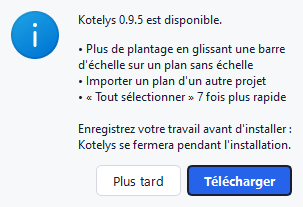
New versions knock on the door
When a version comes out, a window tells you, only once and never while you are tracing. You install whenever you like.
A drawing from another project? Help yourself
Right-click in the Drawings panel: “Import a drawing from another project…”. It arrives with its background, scale, layers and takeoffs.
More reliable copy-paste, “Select all” 7× faster
Ctrl+C, Ctrl+V with no surprises, and Ctrl+A no longer keeps you waiting, even on a busy drawing.
-
Version 0.9.4
Kotelys speaks English.

Hello, Kotelys!
Preferences > Language: choose English and restart Kotelys. Ribbon, panels, help, PDF reports and Excel workbooks switch to English; one click takes you back to French.
Help in both languages
Help (F1) and the “What's new” notes follow the chosen language, and scales are written “1:50” the English way.
-
Version 0.9.3
Clearer layers and a legend that does the maths.
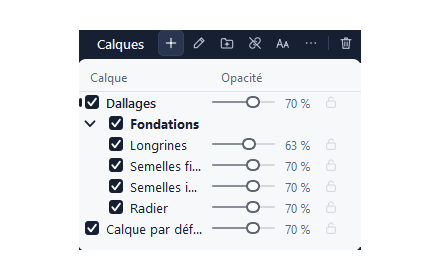
The Layers panel, reworked
A hidden layer turns grey straight away, opacity is always within reach, Group and Ungroup are in plain sight, and a button enlarges the text.
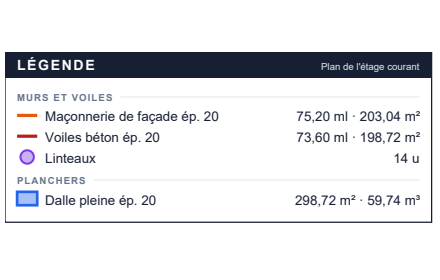
The legend does the maths
Give a wall a height or a slab a thickness: the legend and the reports show both quantities, “298.72 m² · 59.74 m³”.
A subtler selection
The selected object gets a thin yellow outline instead of being covered. And when you drag a rectangle to the edge of the screen, the drawing scrolls by itself.
Import and compare without mistakes
“Open the PDF” in the import window to see the pages full size; for a new revision, you pick the page that matches the drawing.
And plenty of small touches
All site cabins keep the same colour, the Title block button follows each drawing, the type no longer gets cut off in a narrow panel, and a sign's angle no longer covers its name.
-
Version 0.9.2
Vehicles, rectangles and several drawings at once.
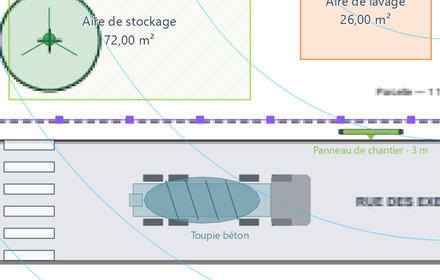
Lorries, plant, access platforms
Concrete mixer, tipper, articulated lorry, mini excavator, excavator, telehandler, access platform: seen from above, at their real size, from a manufacturer's data sheet. The round handle turns the upper structure or the tractor unit, and a button places the lorry's turning circle.
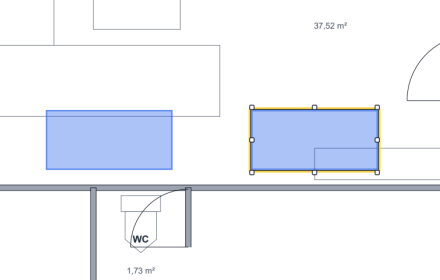
The rectangle count
New “Rectangle” shape: drag a side handle and only that side grows. Perfect for foundation pads and concrete blocks of every size.
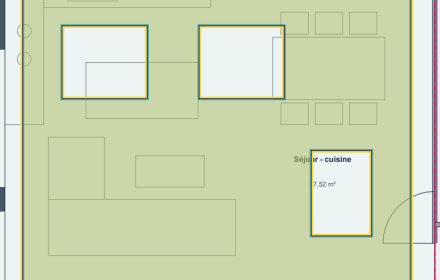
Deductions in a row
Press S, then one click-and-drag per void or window: the deductions follow one after another on the same area. Esc when you're done.
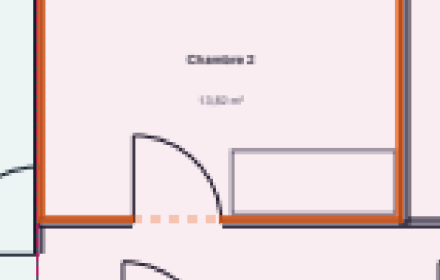
Shift+O: that side is a door
Hover a segment and press Shift+O: it becomes an opening. Even the last side of a room outline, without taking the others with it.
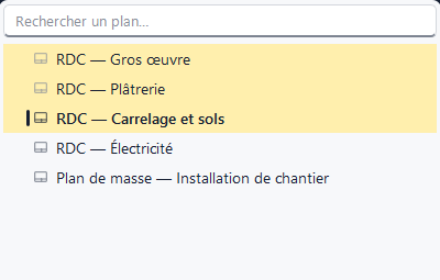
Several drawings at once
Ctrl+click and Shift+click in the Drawings panel or tab: drag them together into a folder, or delete them in one go (Ctrl+Z brings them back).
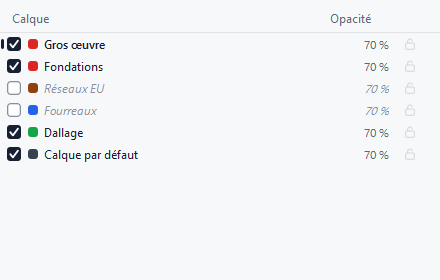
Layers at a glance
Real tick boxes, and a hidden layer turns grey italic. Renaming no longer opens by mistake.
Even more accurate take-offs
Openings counted exactly as drawn, small areas to three decimals, hidden objects counted in reports (a message says so otherwise), and a missing PDF no longer stops the project from opening.
-
Version 0.9.1
Kotelys gets a makeover.
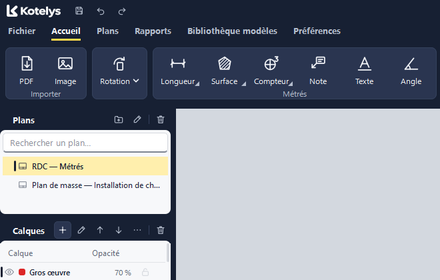
A new look
A navy header, tools sorted into groups, a bottom bar that guides you while you draw, and tooltips that give each tool's shortcut.
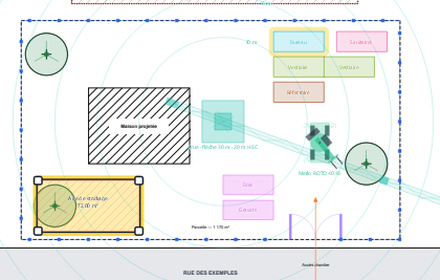
Selection highlights
The selected object keeps its colours: a stroke of yellow highlighter runs underneath. On hover, the one your click will pick already lights up.
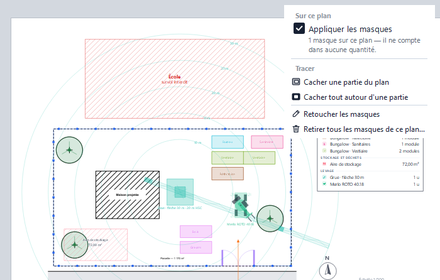
Smarter masks
Hide part of the drawing, or everything around what matters; switch all masks off or on with one tick. The PDF shows exactly what's on screen.
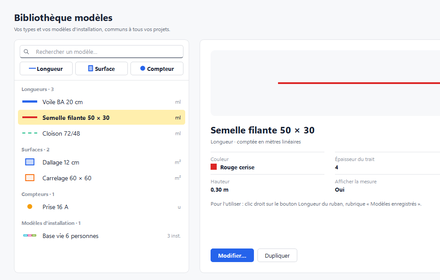
Your library as cards
Each template drawn as it is traced, with its card alongside: preview, settings and how to use it.
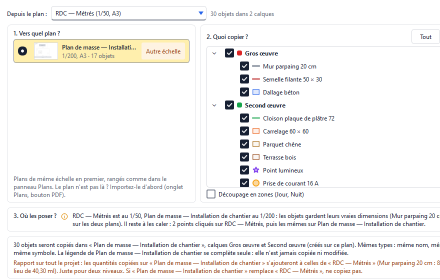
Copy from one drawing to another
Ground-floor walls to the upper floor in one go: same types, true dimensions, in the same place or aligned on two points. And “Duplicate drawing” in one click.
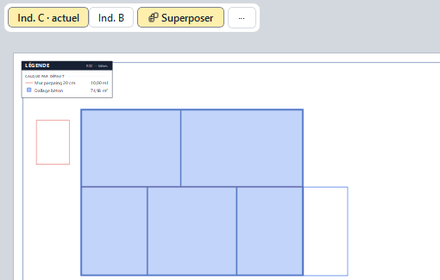
A drawing's new revision
The architect sends revision C? Your take-offs move onto the new background, realigned on two points if the drawing has shifted. Grey: unchanged, red: gone, blue: new. Revision B stays there, frozen, one key away: hold F.
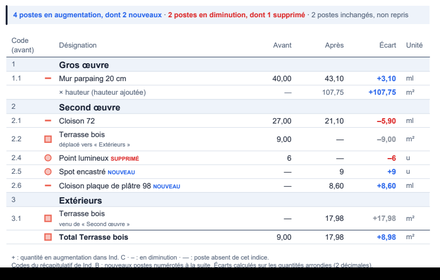
What changed, in figures
The revision comparison lists only the items that change: blue for increases, red for decreases, NEW and REMOVED in plain words. A PDF or an Excel file, ready for the variation.
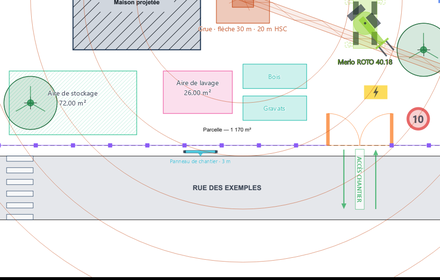
Signage for the site
Signs, site access, pedestrian crossing, parking bays: the site layout plan gets its signage in a few clicks. One click places, the mouse turns, a second click confirms; signs keep the same size on the printed sheet.
-
Version 0.9.0
The first Kotelys beta.
Measure on your drawings
Lengths, areas, counts, deductions and openings, straight on the PDF.
Site layout plan
Tower cranes, lifting equipment, site cabins, fencing and a legend, to scale.
Reports ready to send
Summary, take-off report, drawing set and Excel, from the Reports tab.